SLIC - Salient Language In Context user guide
This guide covers account management as well as creating, publishing and collecting data from a SLIC language experiment.
Table of contents
- Signing up and Logging in
- Managing and creating experiments
- Admin researcher functionalities
- Data Processing and Visualisation
- How to cite SLIC
Signing up and Logging in
To access researcher functionalities you need to log in with an existing account. If you do not have your account yet, you can create one provided you recieved an invitation from an admin researcher.
To create an account:
- Enter sign up page and enter your invitation code
- If you have an invitation link:
- Follow the link you received, you should be now on 'Sign up' page.
- The last input 'Registration code' should be filled with your code.
- If you have an invitation code:
- From the home page click on 'Sign up'
 button located in top right corner.
 - Scroll down and fill the 'Registration code' field with your code.
- From the home page click on 'Sign up'
-
Fill the sign up form. You need to provide: Name, Country, Email, Password, Research Level. Other fields are optional. All this information can be changed later.
-
Click 'Sign up' button on the very bottom to finish registration. If there are any errors in the form, you will get the corresponding message. If successful, you should be logged in.
To log in:
- From the home page click on 'Log in'
 button located in top right corner.
 - Enter your email and correct password and click 'Log in' below the form.
Managing and creating experiments
The experiment dashboard is accessed using the  button at the top of the screen when logged in. From here experiments can be managed, created and results can be accessed.
Creating an experiment
- Click the
 button on the experiment dashboard.
 - Choose a name for the experiment and an optional description. Click "Create Experiment".
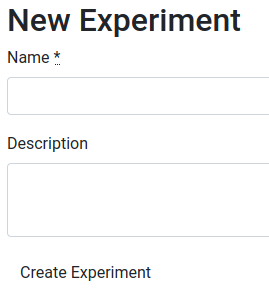
Once an experiment has been created it can be accessed and edited from the experiment dashboard at any time until it is published.
Editing and publishing
An experiment can be edited from its experiment page, accessed by clicking its name in the experiment dashboard.
Title and description
- From the experiment page click
 .
. - Amend title and description.
- Click "Edit Experiment".
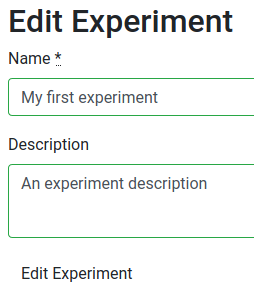
Adding tasks
- From the experiment page click one of the add buttons, e.g "Add question page".
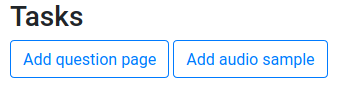
- Choose a name for the new task and click the create button.
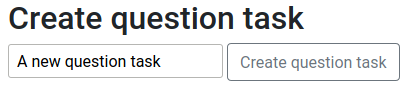
- The task will now be visible in the task list and can be accessed by clicking its name.

Editing tasks
- Clicking a task in the task list will take you to its task page.
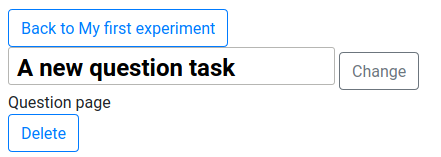
- Task name can be changed by changing its name on the task page and clicking
 .
.
Task types
Question page
A question page simply creates a form for the participant to fill in. It is useful for collecting data such as personal information. Note that the email address gathered on the first page of an experiment is for GDPR compliance purposes and will not be included in the experiment data, so you will need to ask for it again if it is required.
The following shows a question page from the point of view of the participant:
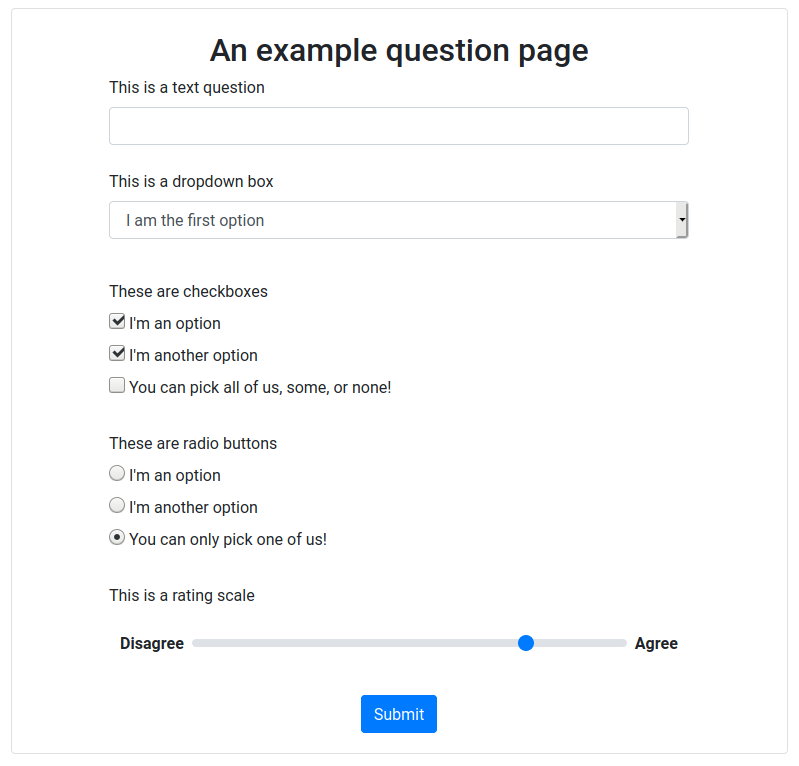
- To add a question, click the relevant "Add question" button from the task page.

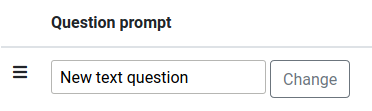
- To change the prompt for a question, edit the prompt in the text field and click .
Question types
There are 3 question types:
- Text question
- A simple text field
- Option question
- Dropdown box, Radio buttons (select one) or Checkboxes (select many).
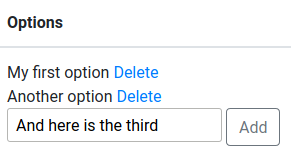
- To add an option, fill the text field in the options column with the option text and press add.
- Rating Scale
- A numerical scale for a participant to rate something.
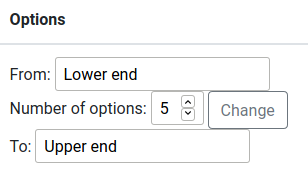
- To change the scale text, change the "From" (Lowest) and "To" (Highest) fields in the options column and press "Change".
- To change the number of options available to the participant, change the "Number of options" field in the options column and press "Change".
Audio sample
An Audio sample allows a participant to listen to, answer questions about, and react in real time to a provided audio sample.
- To upload an audio file click browse, select the file on your device, and click "Upload audio".
- To upload a transcript file click browse, select the file on your device, and click "Upload transcript".

- Transcript files must be in ELAN .eaf format.
Sample tasks
An audio sample can have tasks added to allow the participant to interact with the sample. The task types are as follows:

- Audio hearing
- An opportunity for the participant to listen to the audio sample.
- Question page
- A page of questions about the sample. This task is set up in the same manner as an experiment question page.
- Reaction task
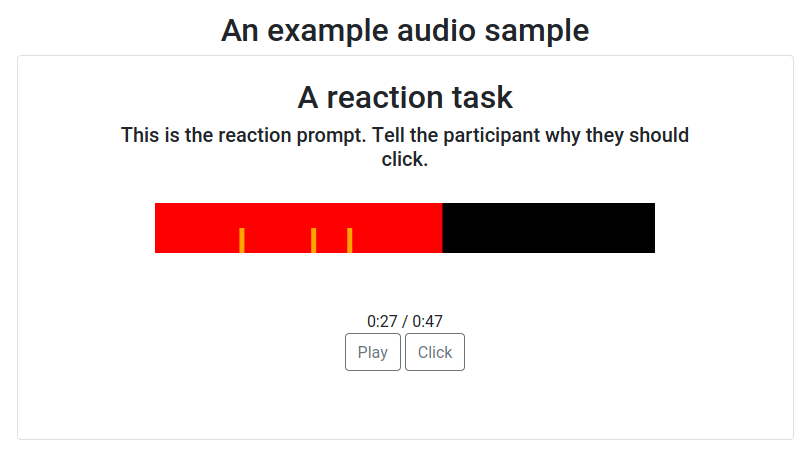
- An opportunity for the participant to listen to the audio sample and click a button when they react to the provided prompt. After the sample is finished the participant is shown each clicked section and asked to justify their reaction.
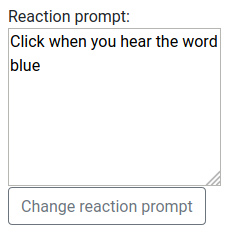
- To change the reaction prompt, click the reaction task on the sample task page, fill in the text field with the new reaction prompt and click "Change reaction prompt".
The following shows a reaction task from the point of view of a participant:
- It may be useful to include an easy calibration reaction task to measure response times of a participant and aid analysis of other reaction tasks. Clicking the
 checkbox marks a sample as a calibration sample and disables click justification for reaction tasks.
Publishing an experiment
To allow people to participate in an experiment it must first be published. An experiment can only be edited before being published and can only be completed by a participant after being published.
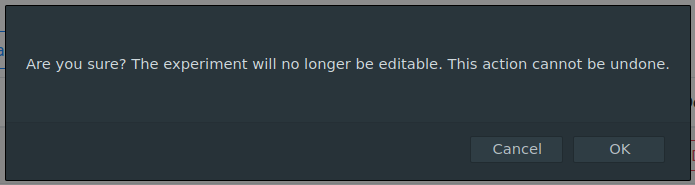
Publishing is irreversible. Once an expeiment has been published it cannot be edited
To publish an experiment click  on the experiment page and select "OK" on the confirmation popup.
Publishing errors
You may encounter warnings or errors when attempting to publish an experiment.
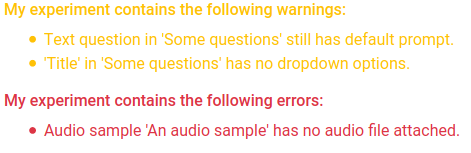
Errors appear when something major is wrong with your experiment, e.g. There is a listening task but you have not yet uploaded an audio file.
Warnings appear when something minor is wrong with your experiment, e.g. A question exists with the default name (New text question).
You must fix any errors before publishing an experiment, but warnings can be overridden with the  button.
Results
Once an experiment has been published results are available for download at any time.
From an experiment page, basic completion statistics can be viewed for the current experiment.

Current results for the experiment can be downloaded in Excel .xlsx format with the  button.
The resulting document contains a sheet of responses for each question task and a sheet of click justifications for each reaction task.
Including SLIC tasks in other platforms
You may wish to include a SLIC task in a survey on a different platform. After completing an experiment, each participant will be shown a unique response ID which will be included in the results download.
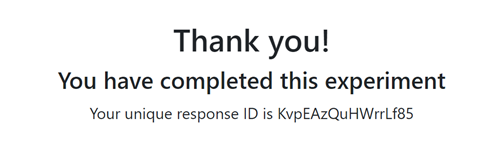
By providing participants with a link to a SLIC experiment and a field to insert their unique response id, results can be related between the two platforms.
Admin researcher functionality
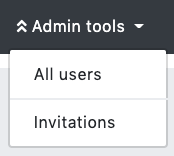
As a system admin you are given more options than normal researcher. Log in into your account, on the navigation bar you should see a drop-down button 'Admin tools'  . If you click on it you will see options: 'All users' and 'Invitations'
  .
.
Manage users
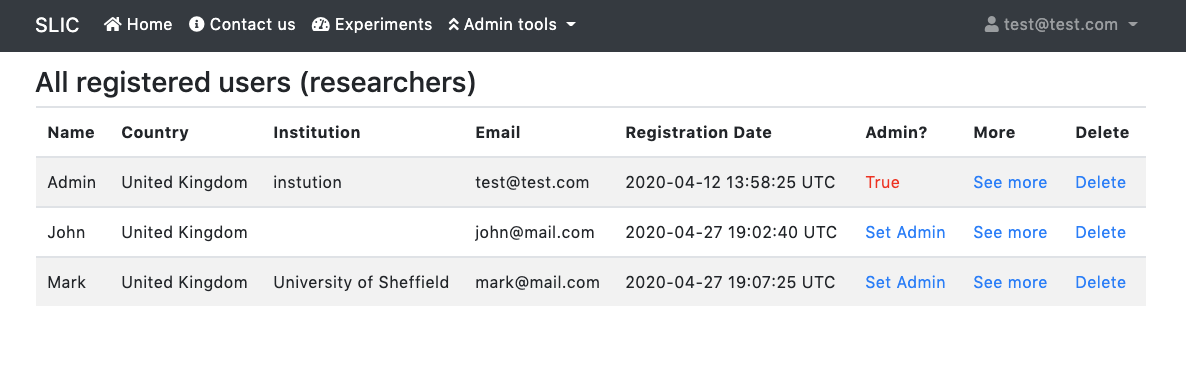
From here you can see all registered reseachers. You can see some of their details in table but to see more, click on 'See more' button.
You can also set an account to be an admin account or remove account from the system. You cannot delete the last admin.
Invitations
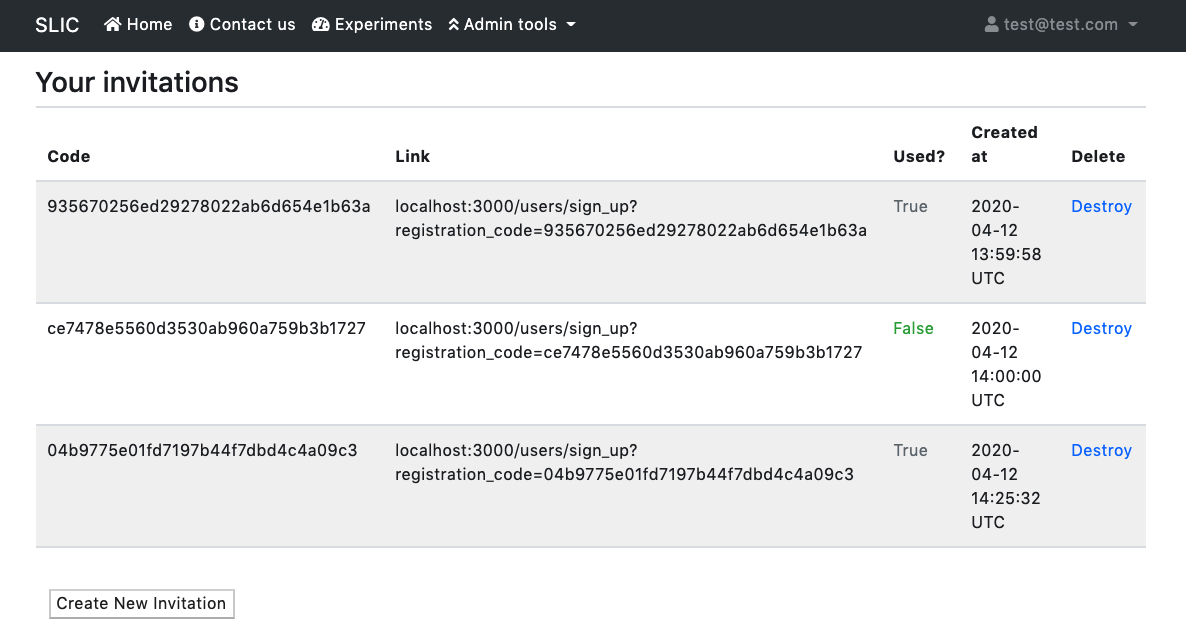
When a researcher wants to register they need to provide a registration(/invitation) code
To create new invitation use the 'Create New Invitation' button in the bottom. Random code will be generated.
One can copy and paste this code into the form or alternatively follow the link which will automatically fill the required form input.
Data Processing and Visualisation
Using Praat to visualise output from the SLIC tool
The Praat program can be used to prepare visualisations of the times of the reactions captured by the SLIC tool, in dynamic editor windows and as static graphics:
-
makeReactionRealtiers.praat (to inspect reactions in dynamic editor windows): package, documentation
-
drawReactionData.praat (to prepare static graphics): package, documentation
-
makeReactionTextGrids.praat (to create TextGrids containing click and comment data, to be viewed in dynamic editor windows): package, documentation
How to cite SLIC
SLIC is free to use for non-commercial research purposes. If you use SLIC to collect data, you must cite the following paper in any publication, presentation, report, or other research output:
Montgomery, Chris, Gareth Walker and Harry Woods. 2025. Salient Language in Context (SLIC): a web app for collecting real-time attention data in response to audio samples. Linguistics Vanguard 11(1): 397-406. https://doi.org/10.1515/lingvan-2025-0028